Collaboration - Work with Your Team
Enable multi-user collaboration with role-based access control across your ESG reporting.
What is Collaboration?
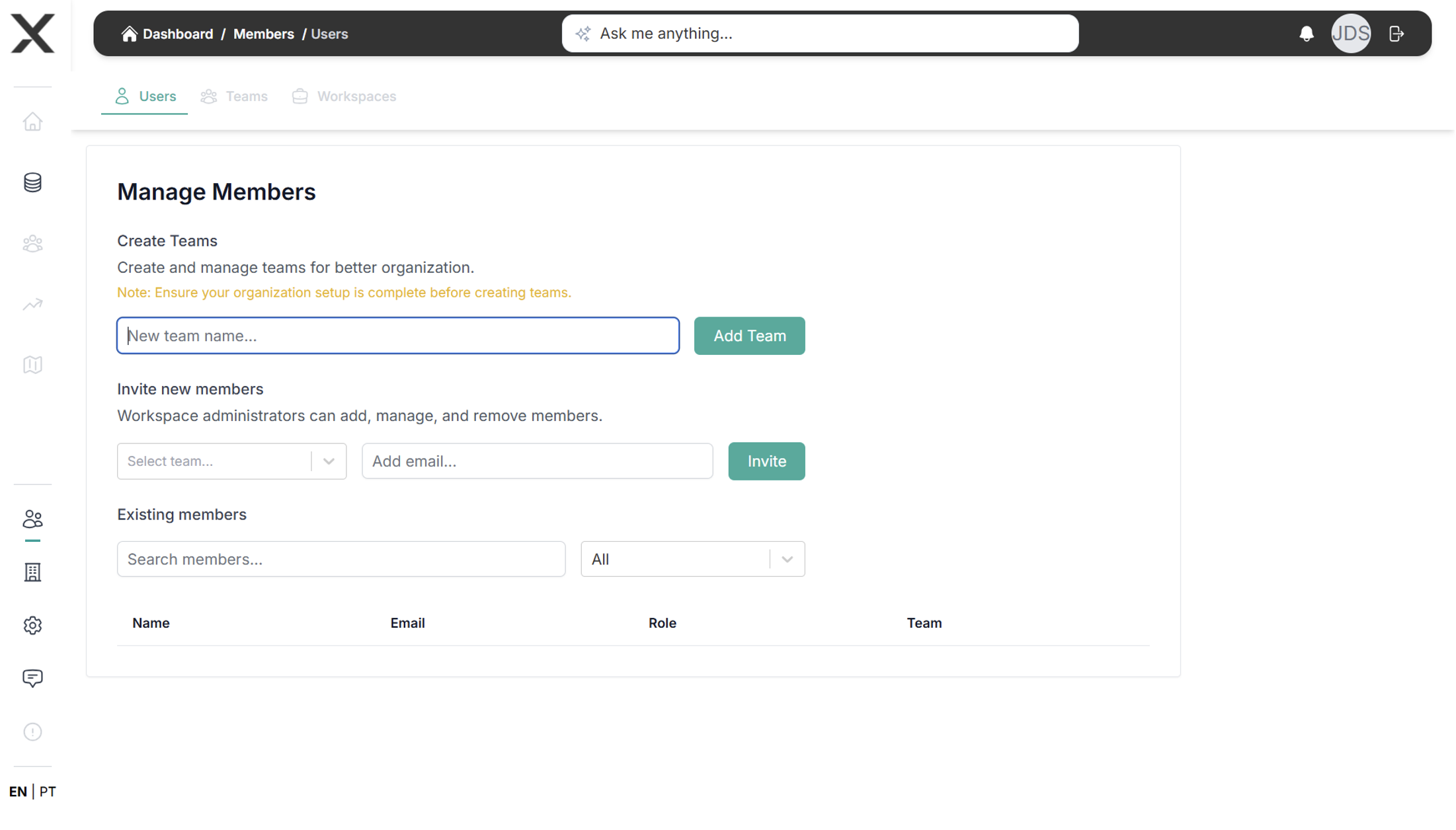
Collaboration is your team management hub where you:
- Manage teams - Organize users by department or project
- Control access - Role-based permissions system
- Invite stakeholders - Engage external participants
- Track activity - See who's doing what
- Share data - Collaborate with value chain partners
Key Capabilities
👥 Team Management
Organize your ESG team effectively:
- Departments - Group by function (Env, Social, Gov)
- Projects - Assign teams to specific reports
- Hierarchies - Reflect your org structure
- External members - Invite consultants or auditors
🔐 Role-Based Access Control
Fine-grained permissions for security:
- Admin - Full system access
- Manager - Edit data and reports
- Contributor - Input data only
- Viewer - Read-only access
- Custom roles - Define your own permissions
✉️ Stakeholder Invitations
Engage internal and external stakeholders:
- Email invitations - Simple onboarding
- Limited access - Scoped permissions
- Guest users - Time-limited access
- Stakeholder portal - Dedicated view
💬 Discussion Threads (Cross-Module)
Keep conversations attached to the work instead of spread across slides and emails:
- Data discussions - Comment directly on data insertion and disclosures.
- Roadmap discussions - Discuss tasks and planning inside the roadmap.
- IRO and topic discussions - Open threads on IROs and material topics, across entities and value chain.
- Report discussions - Comment on specific report sections while you write.
🎬 Tasks and roadmap collaboration (example)
How to Use Collaboration
Step 1: Set Up Your Organization
- Go to Settings → Organization
- Fill in organization details
- Set up departments/divisions
- Configure branding (logo, colors)
Step 2: Invite Team Members
- Go to Settings → Team Members
- Click "Invite Member"
- Enter email address
- Select role:
- Admin: Full access
- Manager: Edit data and reports
- Contributor: Input data
- Viewer: Read-only
- Add to teams (optional)
- Click "Send Invitation"
Step 3: Create Teams
- Go to Settings → Teams
- Click "New Team"
- Name your team (e.g., "Environmental Team")
- Add team members
- Assign team to projects
- Click "Create"
Step 4: Configure Permissions
- Go to Settings → Roles
- Select a role or create custom
- Set permissions for each feature:
- Core: View, Edit, Delete
- Performance: View, Edit
- Materiality: View, Edit, Manage stakeholders
- Value Chain: View, Edit, Share data
- Risk: View, Edit, Assign actions
- Save role configuration
Integration with Other Features
Collaboration provides access control for all features:
→ Core
Control who can enter and edit data.
Example: Contributors can input data, but only Managers can publish reports
→ Performance
Manage who sees sensitive metrics.
Example: Executives have dashboard access, external auditors have limited view
→ Materiality
Enable stakeholder participation.
Example: Invite suppliers as stakeholders for materiality assessment
→ Value Chain
Share data with supply chain partners.
Example: Request emissions data from suppliers via secure portal
→ Risk Management
Assign risk owners and action items.
Example: Assign risk mitigation tasks to specific team members
Best Practices
Start with Clear Roles
- Define roles before inviting users
- Match roles to job functions
- Use descriptive role names
- Document what each role can do
Invite Progressively
- Start with core team
- Add stakeholders as needed
- Don't over-invite initially
- Review user list regularly
Review Permissions Regularly
- Audit access quarterly
- Remove inactive users
- Update roles as needed
- Check for security issues
Train Your Team
- Provide onboarding materials
- Host training sessions
- Create quick reference guides
- Offer ongoing support
Security Best Practices
User Management
- Use strong password requirements
- Enable two-factor authentication
- Regular access reviews
- Prompt deactivation of leavers
Data Protection
- Principle of least privilege
- Segregation of duties
- Audit trail enabled
- Regular security audits
External Collaboration
- Time-limited guest access
- Read-only by default
- Clear data sharing policies
- Monitor external activity
Common Questions
How many users can I have?
Depends on your plan. Contact sales for details. Most organizations start with 5-10 users and scale up.
Can I have different roles per project?
Yes! Users can have different permissions in different projects. A Contributor in one project can be a Manager in another.
How do I remove a user?
Go to Settings → Team Members, find the user, click "..." menu, select "Deactivate". Their data remains but they lose access.
Can external stakeholders see all our data?
No. External stakeholders only see what you explicitly share with them. Use custom roles to control their access.
How do audit logs work?
All actions are logged automatically. Go to Settings → Audit Logs to see who did what and when. Logs are retained based on your plan.
Next Steps
- Core Overview - Start collecting data
- Value Chain Overview - Collaborate with suppliers
Need Help?
- In-app help: Click the ? icon in any screen
- Video tutorials: Watch how-to videos
- Support: support@exo.com